Dismantle products into components
Some companies may take in products from external sources and retain components of those products for future use. For example, a car junkyard may take in cars that are no longer functional and break them down into their components, selling the functional parts to mechanics, who can make use of those parts.
While unbuild orders apply to products that are manufactured, purchased products being disassembled rely on a bill of material’s (BoM) by-products to split the item into components and add those parts to inventory.
Creating by-products ensures that the components for each product can be entered into inventory, complete with serial numbers (if they are used).
Typically, the process is as follows:
Create a manufacturing order (MO) for the product.
Break down the product into its by-product components and enter any tracking numbers (like lots or serial numbers) for the component parts.
Enter parts into inventory by clicking Produce All on the manufacturing order.
Увімкнути налаштування
To set up Odoo to dismantle products into by-products, navigate to . In the Operations section, select the By-Products checkbox.
Create bill of materials
First, create a new BoM for the product that will be dismantled.
Set up a new BoM. Be sure to name the product in a way that differentiates it from the product being disassembled.
Add the product being disassembled to the BoM as a component. Doing this will ensure that the
on-hand quantity of the product being disassembled will decrease by 1 every time an MO is
completed.
Add by-products to the BoM that define the components that will be entered into inventory as a result of an MO.
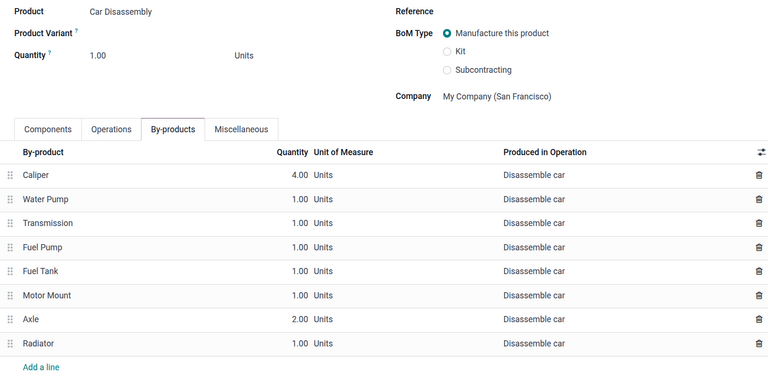
If necessary, add work orders and operations to the BoM to track disassembly.
After the BoM is created, create an MO and confirm it.
Dismantle product
After the MO is confirmed, the product can be broken down into its component parts.
Retrieve the parts, or by-products, from the product.
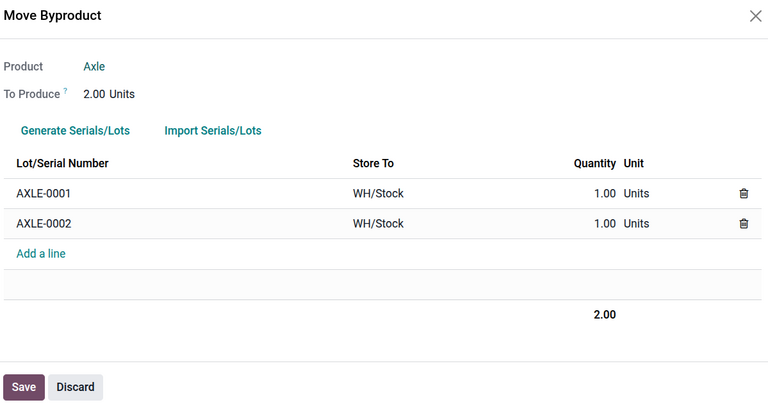
If the by-products are tracked by lot or serial number, open the By-Products tab of the MO. Click the (Show Details) icon to open the Move Byproduct window. Enter the Lot/Serial Number for each by-product, then click Save.
Enter by-products into inventory
To enter the by-products into inventory, click the Produce All button on the MO.
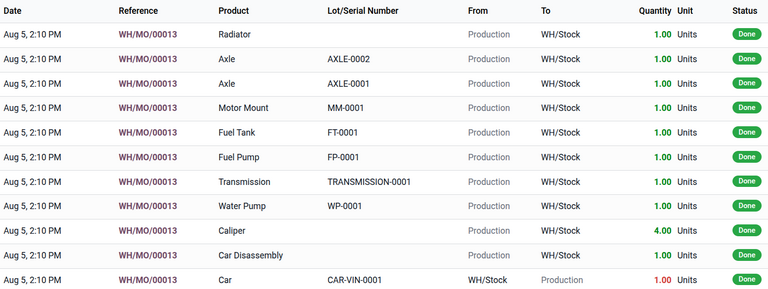
To confirm that the products have been entered into inventory, click the Traceability smart button. A Traceability Report opens, showing the manufacturing order responsible for creating the by-products in the Reference column, the Lot/Serial # associated with the by-products, where it is moving From and To, and the Quantity.
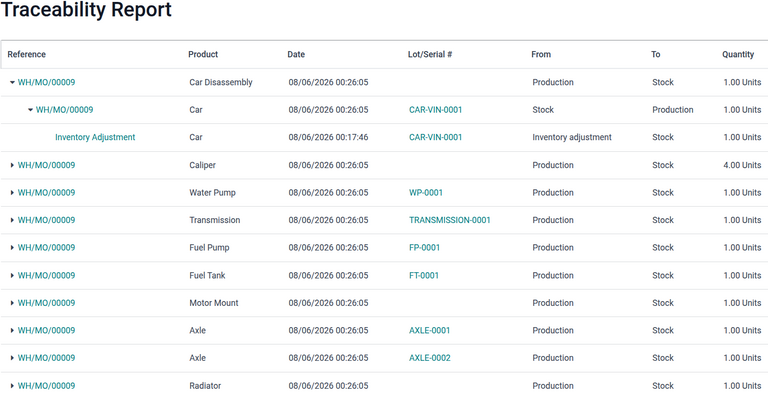
Similar information can be found on the Product Moves smart button of the manufacturing order.