
Вакансії
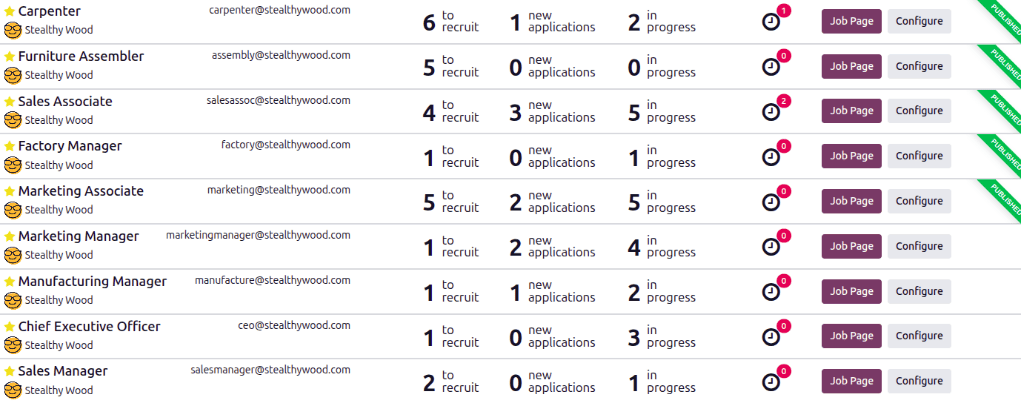
In Odoo’s Recruitment application, all job positions are shown on the default Job Positions dashboard, which includes both active and inactive positions.
Each job position is shown in an individual Kanban card. If the job position is active, and candidates can apply, a green Published banner appears in the top-right corner of the card.
View submitted applications by clicking anywhere on a job position card, except the (Activities) icon, the Job Page button, or the Configure button.
Create a job position
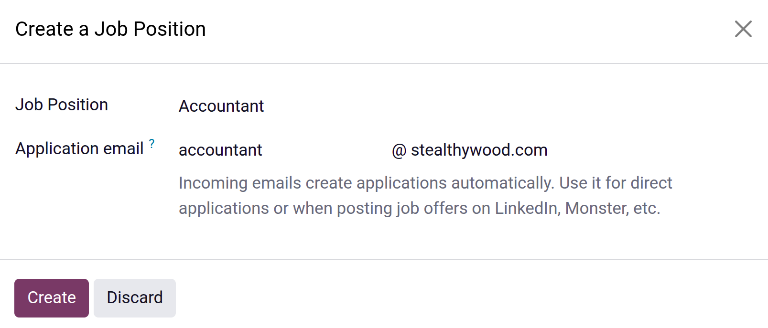
To create a job position from the main dashboard in the Recruitment app, click the New button in the top-left corner, and a Create a Job Position pop-up window appears.
First, enter the name of the Job Position (such as Sales Manager, Mechanical
Engineer, etc.) in the corresponding field.
Далі введіть Application email, ввівши першу половину адреси електронної пошти в перше поле, а потім виберіть другу половину електронної пошти за допомогою спадного меню в другому полі. Кандидати можуть надіслати резюме на цю конкретну адресу електронної пошти, і Odoo автоматично створить для них заявку.
Після завершення клацніть кнопку Create, щоб зберегти запис, або кнопку Discard, щоб видалити його.
Примітка
Once the Create button is clicked, the Applications dashboard for the newly created job loads. The Applications dashboard is empty, as there are no applicants. Click the Job Positions breadcrumb to return to the main Recruitment app dashboard.
Configure a job position
Once the job position has been created, the details must be configured. On the main Recruitment app dashboard, click the Configure button at the end of the Kanban card, and the detailed job position form loads.
Configure the Details, Summary, Application Info, and Trackers tabs, as described below.
Вкладка деталей
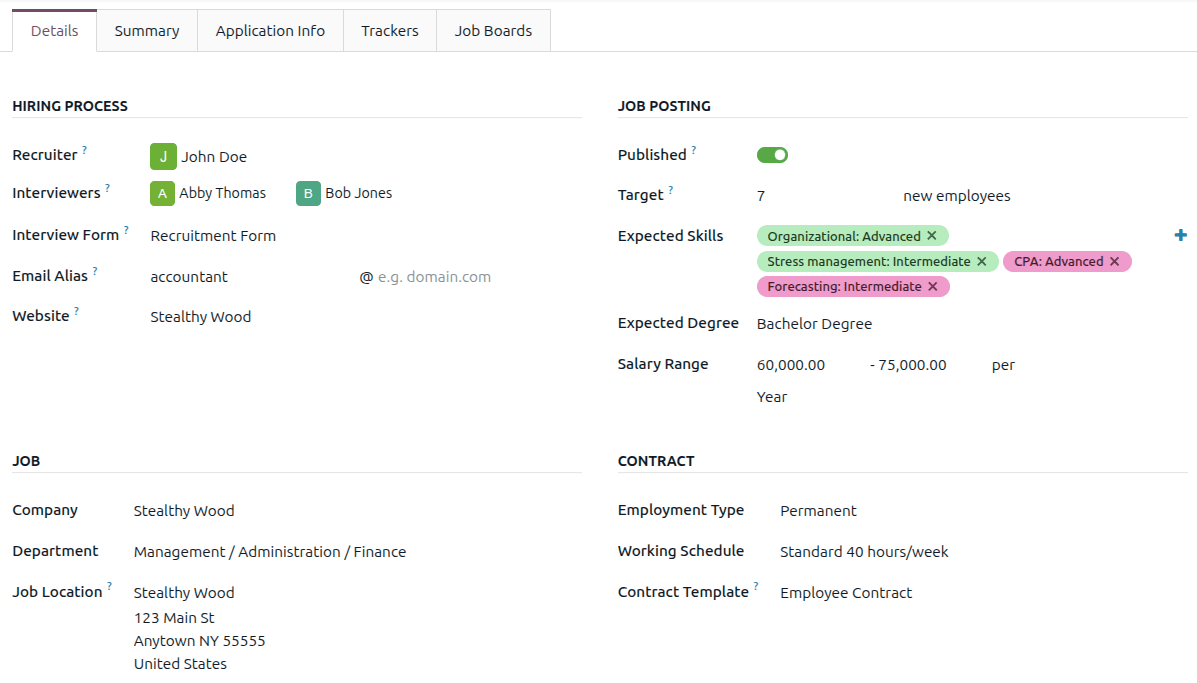
All the basic details about the job position are housed in the Details tab.
None of the fields are required, but it is important to configure and populate the Department, Job Location, and Employment Type fields, as they are all visible to prospective applicants on the website.
Примітка
Some fields listed below may not appear depending on the installed apps and database configuration.
Enter the information in the following sections.
Hiring process section
Рекрутер: Виберіть особу, відповідальну за підбір кадрів для цієї посади.
Інтерв’юери: Виберіть, хто проводитиме співбесіди. Можна вибрати кілька осіб.
Interview Form: Select an interview form that applicants fill out prior to their interview.
Псевдонім електронної пошти: введіть адресу електронної пошти, на яку кандидати можуть надіслати резюме. Після отримання листа Odoo автоматично створює для них заявку. Якщо електронну пошту було введено під час створення посади, це поле буде заповнене.
Веб-сайт: Виберіть веб-сайт, на якому опубліковано вакансію.
Розділ вакансії
Компанія: виберіть компанію, для якої призначена посада. Це поле відображається лише при використанні багатокомпанійної бази даних.
Відділ: виберіть відповідний відділ для посади. Це видимо на веб-сайті.
Місце роботи: виберіть фізичну адресу для роботи. Якщо посада віддалена, залиште це поле порожнім. Це видимо на веб-сайті.
Job posting section
Published: When the job position is ready to be published on the website, click the Published toggle to publish the job position. The toggle changes to green, indicating the listing is live on the website.
Ціль: введіть кількість співробітників, яких потрібно найняти на цю посаду.
Expected Skills: Select all the desired skills for the job position in this field. To add a skill, click the (plus sign) icon, and select the Category, Skill, and Skill Level for each skill added. The skills presented are configured in the Employees app.
Expected Degree: Select the level of education desired, using the drop-down menu. The default options are: Graduate, Bachelor Degree, Master Degree, and Doctoral Degree.
Діапазон зарплати: введіть як мінімальну, так і максимальну зарплату, що пропонується для посади, у двох полях. Потім встановіть останнє поле на часові рамки для діапазону зарплати. Типовими варіантами є Година, День, Тиждень, Два тижні, Місяць та Рік.
Contract section
Employment Type: Select what type of position the job is, using the drop-down menu. The default options are Permanent, Temporary, Interim, Seasonal, Full-Time, Part-Time, Intern, Student, Apprenticeship, Thesis, Statutory, and Employee. Depending on the installed localization, other options may be available. This is visible on the website.
Робочий графік: виберіть робочий графік для посади. Odoo надає один робочий графік за замовчуванням, Стандартний 40 годин/тиждень, але доступні всі робочі графіки в базі даних.
Шаблон контракту: Виберіть шаблон контракту, який використовуватиметься при пропонуванні роботи кандидату.
Summary tab
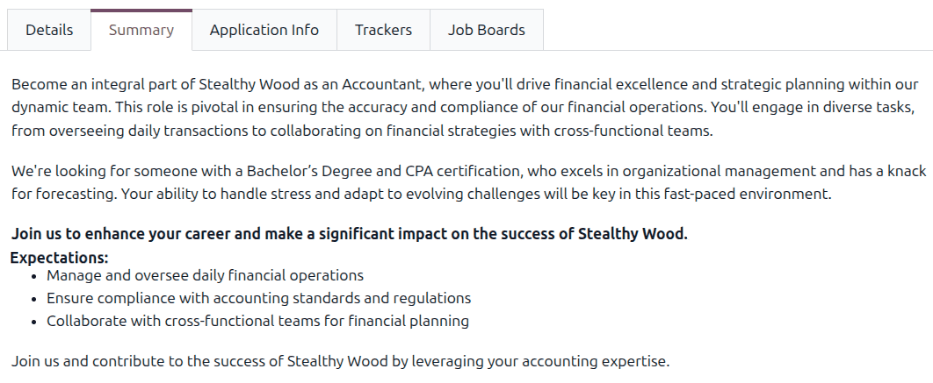
Enter the complete job description in the Summary tab. This description is visible on the website, and should convey any relevant information for the position that is not covered or explained in the Details tab. This may include information such as specific tasks the job requires, any required past experience, or uncommon benefits or compensation.
Вкладка інформації про заяву
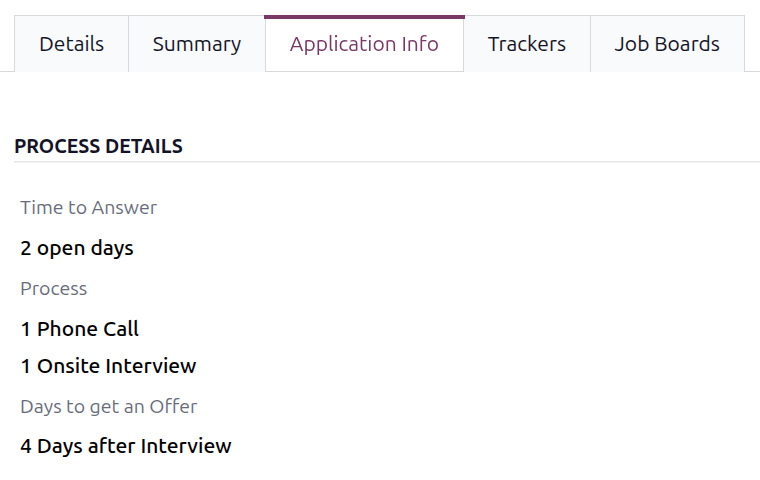
The Process Details section of the Application Info tab contains information that is displayed online for the job position. This informs the applicants of the timeline and steps for the recruitment process, so they know when to expect a reply.
Наступні поля заповнюються за замовчуванням, але їх можна змінити відповідно до графіка підбору персоналу компанії:
Time to Answer: The number of days before the applicant is contacted. 2 open days populates this field by default.
Process: The various stages the candidate goes through during the recruitment process. By default, two process steps are visible: 1 Phone Call and 1 Onsite Interview.
Days to get an Offer: The number of days before the applicant should expect an offer after the recruitment process has ended. The default is 4 Days after Interview.
Примітка
The Process Details section of the Application Info tab is a text field. All answers are typed in rather than selected from a drop-down menu. The text is displayed on the website exactly as it appears in this tab.
Trackers tab
When reaching potential applicants, recruiters often share the job position across multiple websites, including social media sites, job board sites, and third-party hosting sites. The Trackers tab provides a centralized place for recruiters to keep a record of all the places a tracking link has been shared. This allows recruiters to determine which sites were the most successful in terms of receiving applications from them.
Порада
Before creating trackers, first publish the job on the company website.
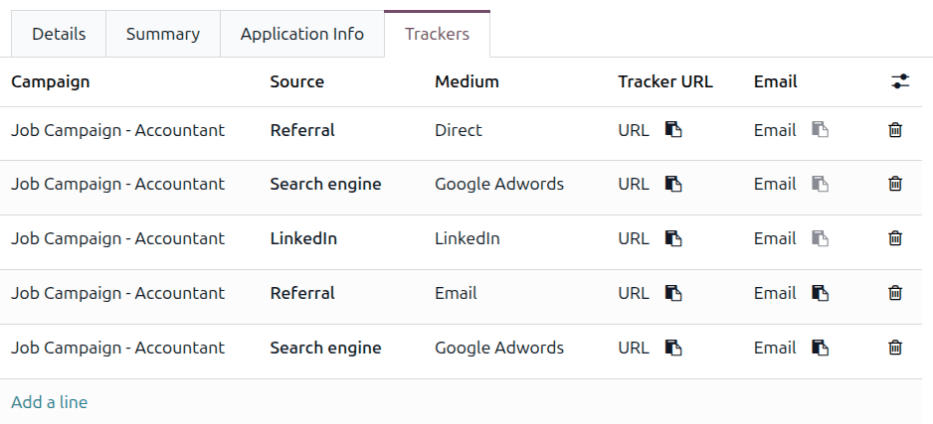
To add a tracking link, click on the Trackers tab, click Add a line, and a blank line appears at the top of the list. Configure the following fields for each tracker:
Campaign: Select the campaign the job position falls under using the drop-down menu.
Source: Select where the tracker was used using the drop-down menu. There are ten default options, such as Search engine, Newsletter, and LinkedIn, but more may be available depending on the installed applications and created events.
Medium: Select the method used to share the tracker from a list of ten default options, such as Banner, Email, and Google Adwords.
Tracker URL: Once the Campaign, Source, and Medium are defined, Odoo automatically creates the corresponding tracking link. Click URL to copy the link to the clipboard, then share the link where appropriate.
Email: Once the Campaign, Source, and Medium are defined, Odoo automatically creates the corresponding email. Click Email to copy the email address to the clipboard, then share the email where appropriate.
Job boards tab
The Job Boards tab is automatically populated as the job position is shared on a job board. As each listing is created, the information appears in this tab.
Див. також