
Процес найму
When a prospective employee applies for a job in Odoo, there is a preconfigured process from the initial inquiry to the creation of a new employee once hired. The following outlines the default recruitment process for Odoo’s Recruitment application.
Важливо
The following is based on Odoo’s default recruitment pipeline. Be advised that if modifications are made to the pipeline, the process differs.
Новий
At the start of the process, all applicants appear in the New stage on the Applications page, whether they submitted through the company website, emailed a resumé to the email alias, or were manually added by a recruiter.
The Applicant, Email, and Phone number on the applicant’s card are filled as soon as it is created. By default, these details are required for every job position.
Примітка
Якщо форму заявки на веб-сайті було змінено, різні поля можуть заповнюватися залежно від того, яка інформація є обов’язковою на веб-сайті.
Anything typed in the Short Introduction section appears in the applicant’s chatter as a note from OdooBot, labeled Other Information.
Резюме
If a resumé was attached to the online application, it appears in the Files section of the chatter, and is also stored in the Documents application.
To find the recruitment documents, navigate to the main app dashboard, and click the Recruitment folder on the side. All recruitment documents are stored within that folder.
Примітка
Залежно від рівня масштабування браузера або розміру екрана браузера, резюме може відображатися під основною інформацією картки заявника як PDF-посилання або праворуч як зображення.
Надіслати співбесіду
На будь-якому етапі процесу найму можна надіслати заявнику співбесіду для отримання додаткової інформації. Ці співбесіди створюються індивідуально і можуть бути відформатовані різними способами.
Для надсилання співбесід заявнику потрібна програма Опитування, тому її необхідно встановити.
Odoo uses the term interview, but these can be thought of as questionnaires, surveys, tests, certifications, etc. Custom interviews can be formatted to suit each individual job position’s needs.
Example
Посада комп’ютерного програміста може мати співбесіду у формі вікторини з програмування для визначення рівня кваліфікації заявника. Посада офіціанта в ресторані може мати анкету з питаннями про доступність заявника, якщо бажаний кандидат повинен бути доступний у вихідні ввечері.
To send an interview to an applicant, first open the applicant’s card from the Applications page to view the detailed applicant information. In the top corner of the applicant’s card, click the Send Interview button.
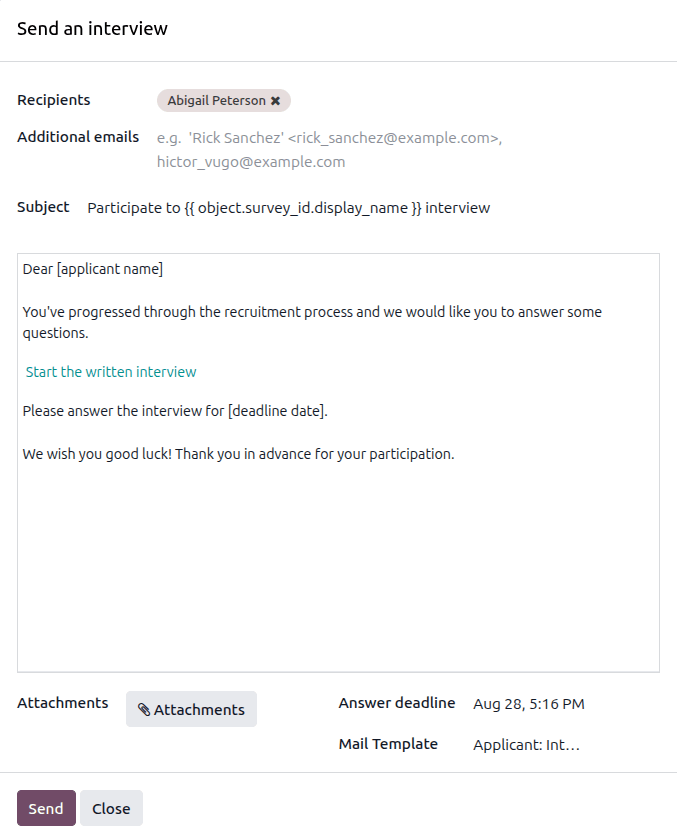
If the applicant’s card has an email address on file, a Send an interview pop-up window appears, with the Recipients, Subject, and email body populated.
Примітка
Щоб надіслати електронний лист заявнику, на картці заявника має бути адреса Електронної пошти.
If an email address is missing on the applicant’s card, when the Send Interview
button is clicked and the Send an interview pop-up window loads, a second pop-up window appears
under the Recipients field. This pop-up window displays What's the email address of
(applicant name)? along with a field to enter the email address. Once entered, click
Set Email.
The email address entered is only used to send the interview, and does not appear on the applicant’s card.
Sometimes, preconfigured email templates in Odoo use dynamic placeholders, which are automatically filled with specific data when the email is sent. For example, if a placeholder for the applicant’s name is used, it is replaced with the actual name of the applicant in the email.
Add the email addresses of any additional recipients for the survey in the Additional emails field, if more people should receive the email. If an email address is in the database as a contact, add that contact in the Recipients field. If an email should be sent to someone who is not in the database, and they should not be added as a contact, add their email address in the Additional emails field.
Якщо потрібно додати будь-які вкладення, натисніть кнопку Вкладення, і з’явиться вікно провідника файлів. Перейдіть до потрібного файлу та натисніть Відкрити, щоб прикріпити його до електронного листа. Вкладення завантажиться та буде показано над кнопкою Вкладення.
The Answer deadline field specifies when the interview form must be completed by, and is populated with a date and time two weeks in the future. To modify this, click on the displayed date and time, navigate to the desired date and click the date to select it. Next, select the time the interview is due by clicking into the displayed time, and clicking the desired new deadline.
The Mail Template field is pre-populated based on the configuration for the interview. A different template can be chosen from the drop-down menu, if desired. If a new template is selected, the new email template loads in the email body.
To send the email with the interview link to the applicant, click Send at the bottom of the Send an interview pop-up window.
Qualification
If an applicant is determined to be a good potential candidate, they are moved to the Qualification stage.
This stage exists to sort candidates that have potential from those that do not meet the requirements. No automatic actions, such as emails, are set for this stage. This stage informs the recruitment team to potentially set up a phone call or an interview with the candidate.
Примітка
In order to move an applicant’s card from one stage to another, the applicant’s card can either be dragged and dropped in the Kanban view of the Applications page to the desired stage, or the stage can be modified on the applicant’s card.
To change the stage on the applicant’s card, first click the desired applicant’s card from the Applications page. The current stage for the card is highlighted at the top on a status bar, above the card.
Натисніть потрібний етап для картки, і етап зміниться. У журналі переписки також з’явиться запис про зміну етапу.

Перша співбесіда
After an applicant has passed the Qualification stage, they can be manually moved to the First Interview stage on the Applications page, while in Kanban view.
To move the applicant to the next stage, drag and drop the applicant’s card to the First Interview stage.
Alternatively, open the desired applicant’s card from the Applications page, and click the First Interview stage on the status bar at the top of the individual applicant’s card.
Порада
Етап Перша співбесіда можна налаштувати так, щоб при переміщенні картки кандидата на етап Перша співбесіда кандидату автоматично надсилався електронний лист із повідомленням про запрошення на співбесіду. У цьому попередньо налаштованому шаблоні електронного листа з’являється посилання на календар команди з підбору персоналу, що дозволяє кандидату запланувати свою співбесіду.
Edit the First Interview stage, and select the Recruitment: Schedule Interview option in the Email Template field to automate this action.
Друга співбесіда
After an applicant has passed the First Interview stage, they can be moved to the Second Interview stage. To move the applicant to the next stage, drag and drop the applicant’s card to the Second Interview stage from the Kanban view of the Applications page, or click on the Second Interview stage at the top of the individual applicant’s card.
Коли картка кандидата переміщується на етап Друга співбесіда, для цього етапу типово не налаштовано автоматичних активностей або електронних листів. Рекрутер тепер може запланувати другу співбесіду з кандидатом, дотримуючись того самого процесу, що й для першої співбесіди.
Пропозиція контракту
Після того, як кандидат пройшов різні етапи співбесід, наступним кроком є надіслати пропозицію роботи.
Once the offer has been sent, drag and drop the applicant’s card to the Contract Proposal stage from the Kanban view of the Applications page, or click on the Contract Proposal stage at the top of the individual applicant’s card.
Контракт підписано
Once the contract has been fully signed by all parties, and the applicant has been hired, the applicant’s card moves to the Contract Signed stage.
The Contract Signed is folded by default on the Applications page, and must be expanded before the applicant’s card can be manually moved. Click the (Unfold) icon above the Contract Signed stage, and the stage expands. Next, drag and drop the applicant’s card to the Contract Signed stage from the Kanban view, or click the Contract Signed stage at the top of the individual applicant’s card.
Refused
У будь-який момент процесу рекрутингу кандидату можна відмовити.